Item Codes and Wire Codes
Three dots button of Item codes or Wire codes fields will initiate the Item/Wire Codes List window, depending on the selected entity.
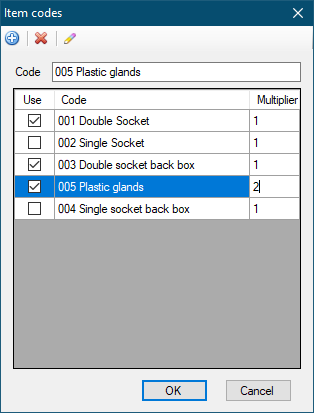
Toolbar accommodates Add, Delete, and Rename buttons. These buttons will, in the same order, add a new code to the list, delete a code from the list, and rename a priorly selected code. Tick boxes under column Use, can be used to assign items/wires to the selected symbol/wire. Multiplier column can be used to define a quantity for the related item/wire. Multiplier value will only be saved for the selected symbol/wire, and will be reset to 1 for other occasions.
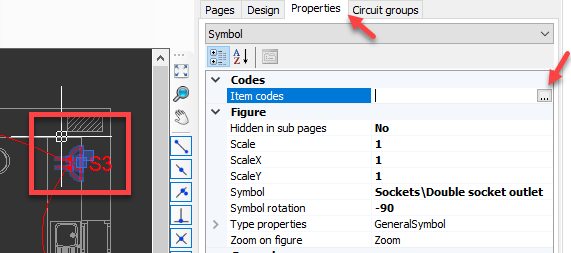
A single item/wire code, or multiple item/wire codes can be assigned to every individual symbol/wire by means of check boxes. Assigned codes will only be valid for the selected symbols/wires and will not be applied to any other occurrences of the same symbols/wires if they are not selected.
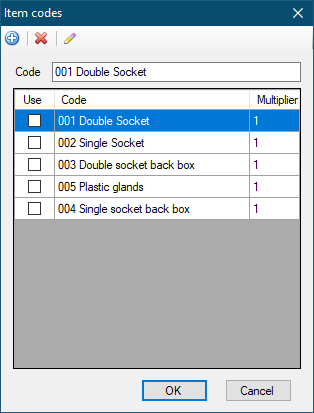
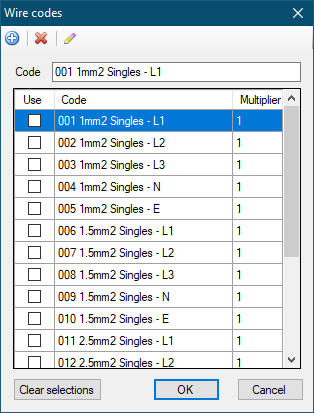
We created various items and wires as seen above. As an example, we will assign item no.s 001, 003, and 005 to a double socket symbol. We also will define a multiplier, 2, for 005.
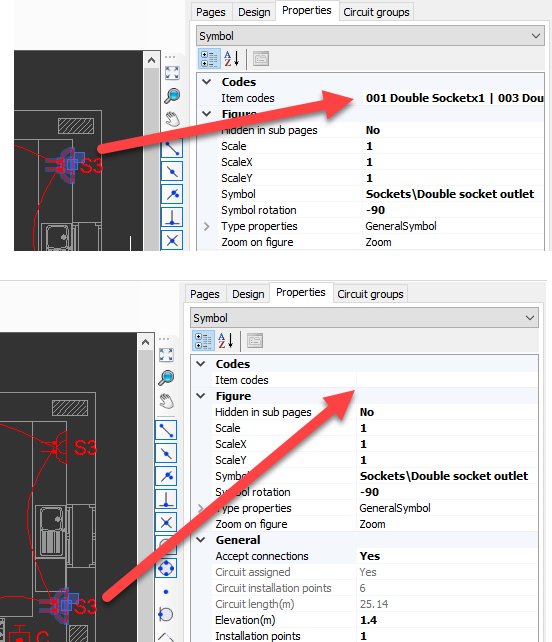
It can be seen that this is applied only to the selected symbol but not to other occurrences of the same symbol.
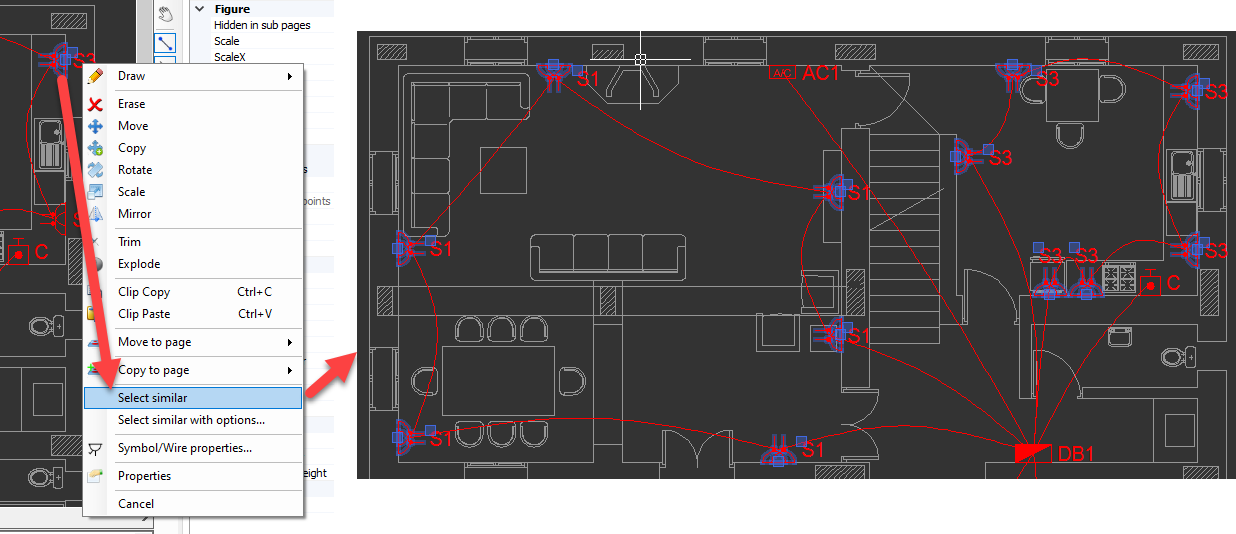
Select similar and Select similar with options... features of the right-click menu will prove itself very useful when assigning codes to multiple symbols.
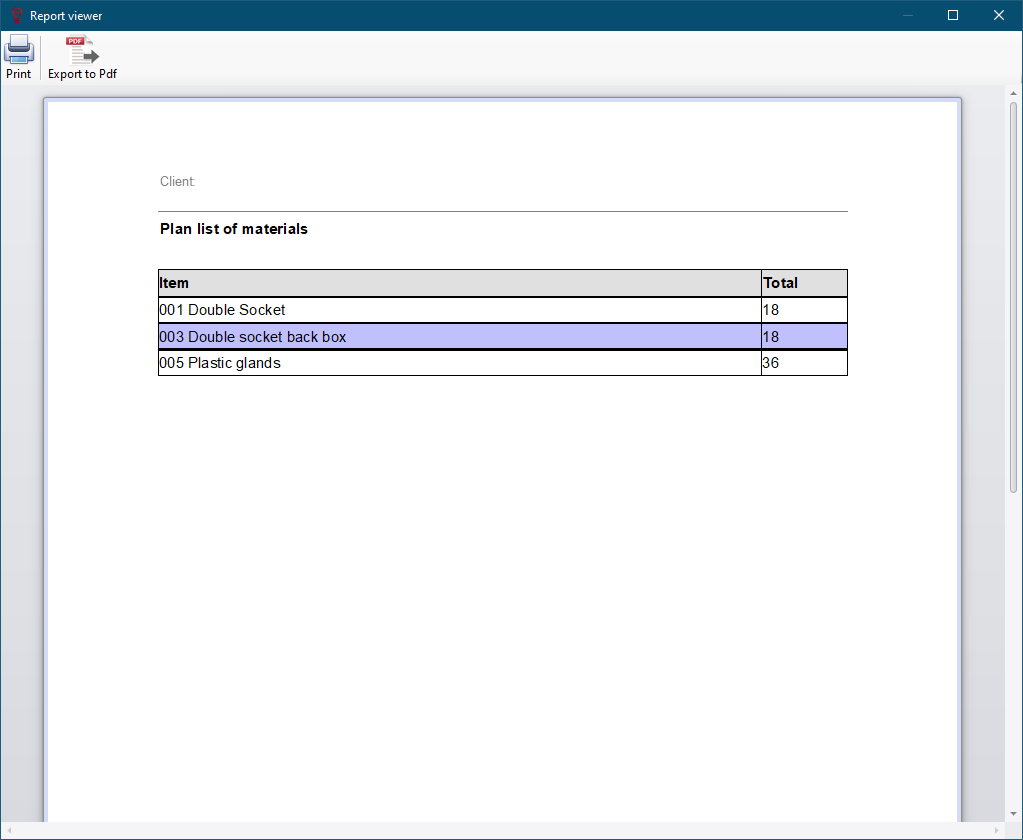
Once item codes are defined and assigned to symbols, Material List option can be used to display items used within he project. Print and Export to Pdf button can be used to print, and export the list as Pdf. The same report is also available via ElectricalOM's Report tab.